Study Notes
Accessing the Study Notes page
The Study Notes page can be accessed from the sidebar by selecting Study Notes.
Viewing saved problems
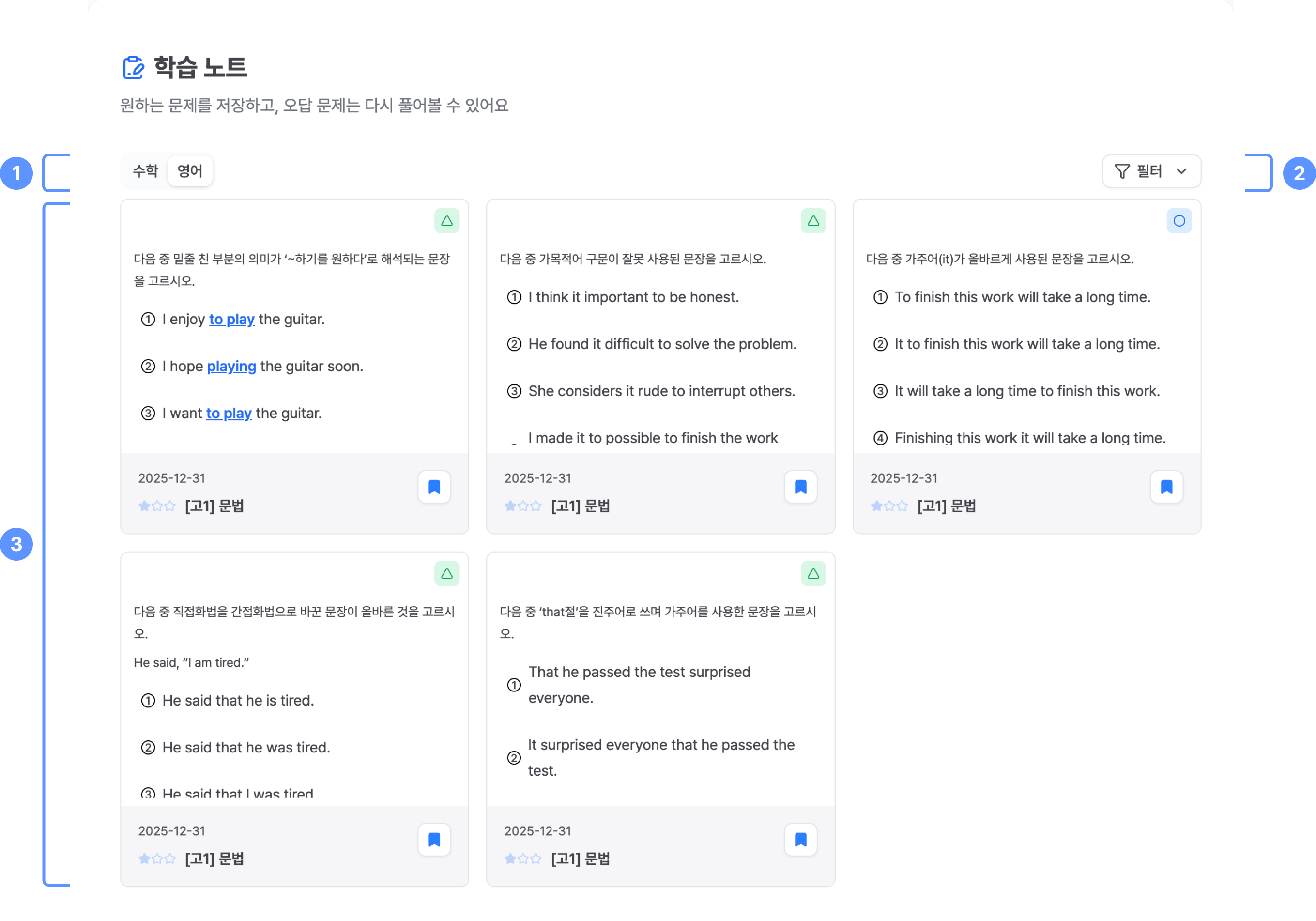
1
Recommended problems are organized and displayed by subject.
2
Filters allow you to view only problems with specific statuses.
3
All problems saved from the Learning Problem Recommendation area are shown in one place. Selecting a problem opens the problem-solving dialog.
Solving problems
Selecting a problem from the Study Notes list opens a dialog where the problem can be solved again.
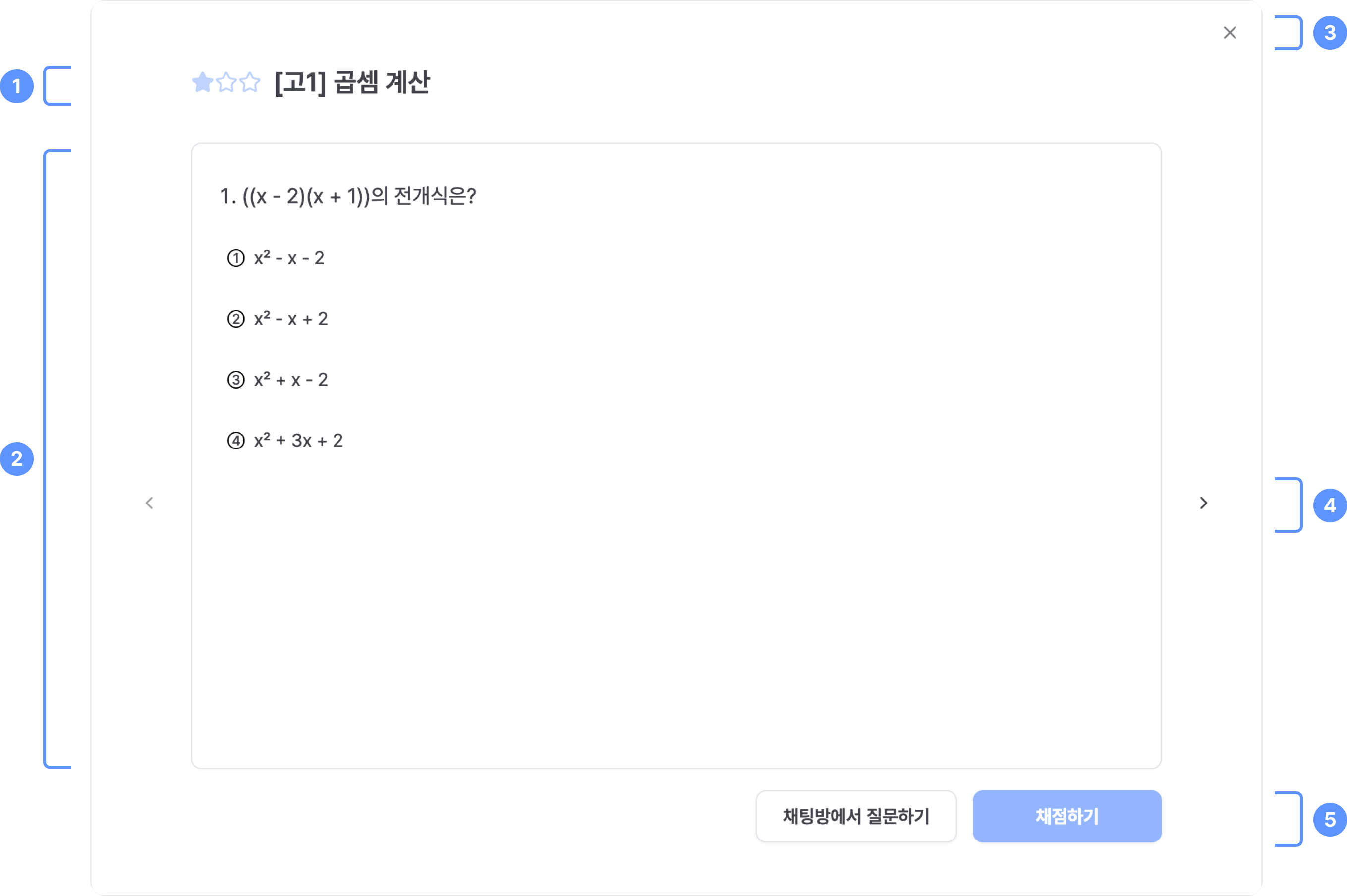
1
Grade level, problem difficulty, and problem category information are displayed.
2
The saved problem is shown. Problems may be multiple-choice or short-answer.
3
Closing the dialog returns you to the saved problem list.
4
Arrow buttons allow navigation between previous and next problems.
5
Use Ask in Chat to ask the AI about the current problem, or Grade to check your answer.
Removing problems from Study Notes
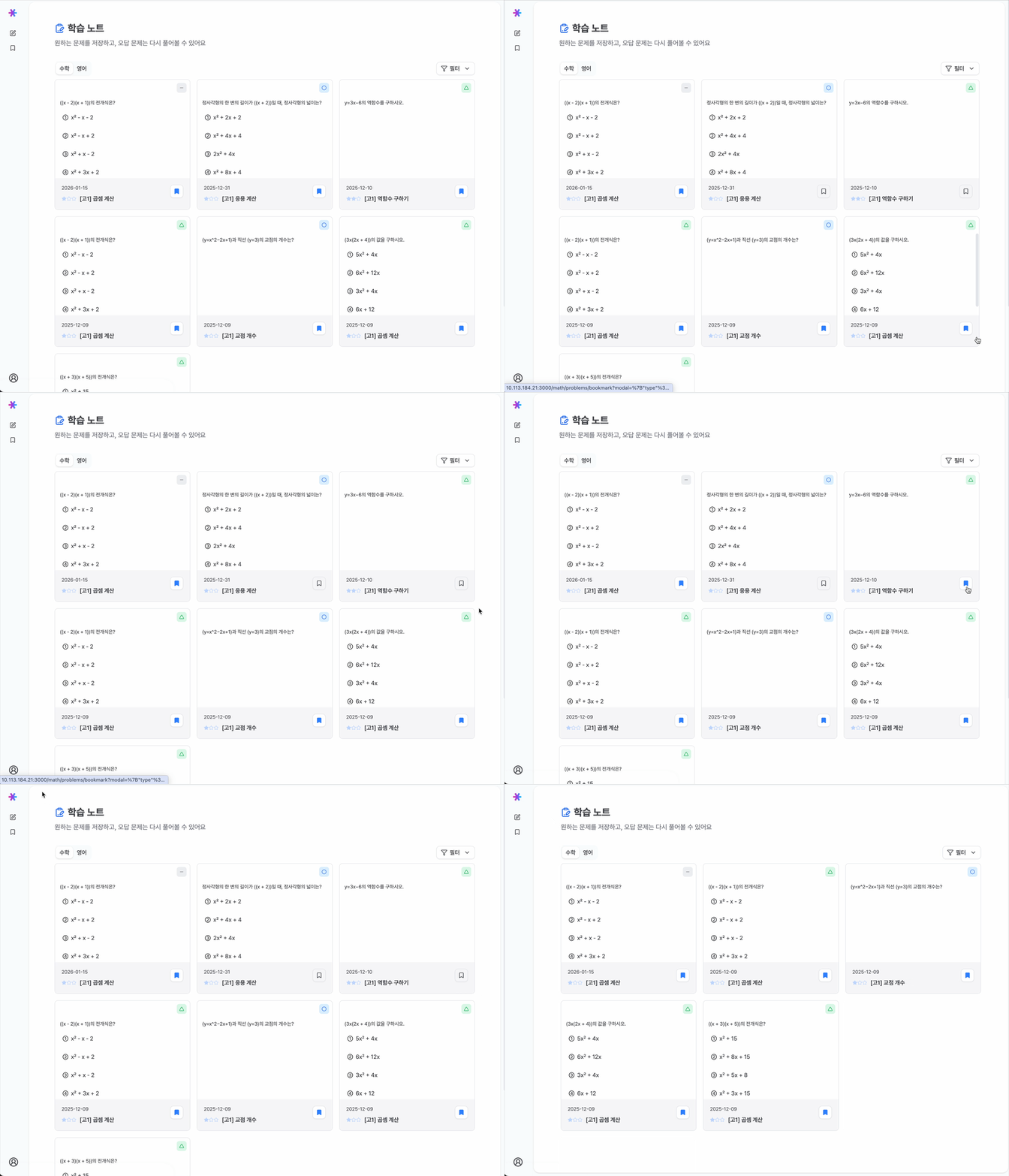
- Selecting the bookmark button removes a problem from Study Notes.
- To prevent accidental removal, the problem is not immediately deleted from the list. Only the bookmark toggle is turned off.
- The problem can be re-added at any time by toggling the bookmark again. The removal is finalized after a page refresh.